
If you want to get the most out of Google Analytics 4 (GA4), exporting your data to Google Sheets is an excellent way to analyze it and share insights with your team. In this post, I will show you two methods:
- The Free Official Extension: Best for manual exports and simple reports.
- Coupler.io: A robust tool that allows you to export data not only to Sheets but also to destinations like BigQuery, PostgreSQL, or Tableau. Coupler.io offers a free plan and, in its paid versions, the ability to automate extraction and transform data.
Method 1: The Official Free Extension #
Google offers an official add-on (GA4 Reports Builder for Google Analytics) that helps you extract data from GA4 directly into Google Sheets.
Step-by-Step Setup #
-
Install the Add-on:
- Open a new Google Sheets file.
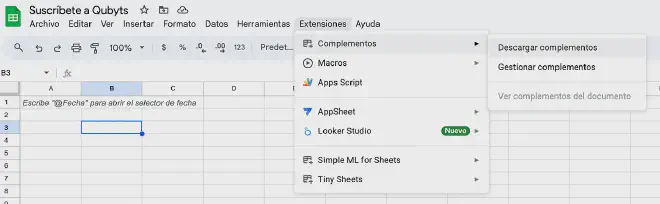
- Go to Extensions > Add-ons > Get add-ons.
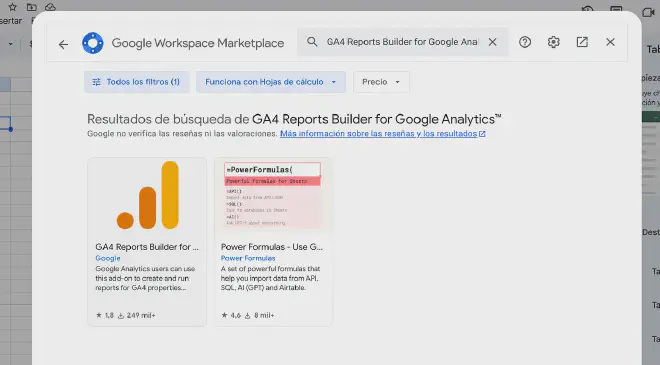
- Search for “Google Analytics” and select the official add-on.
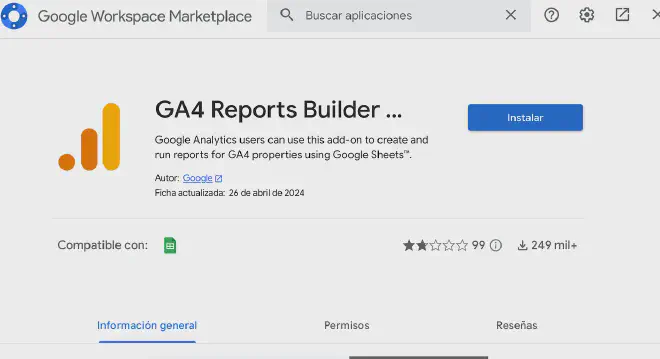
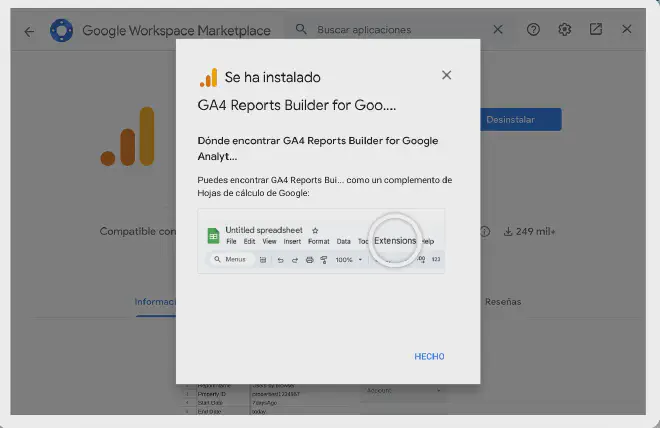
- Click Install and accept the necessary permissions.
-
Connect to GA4:
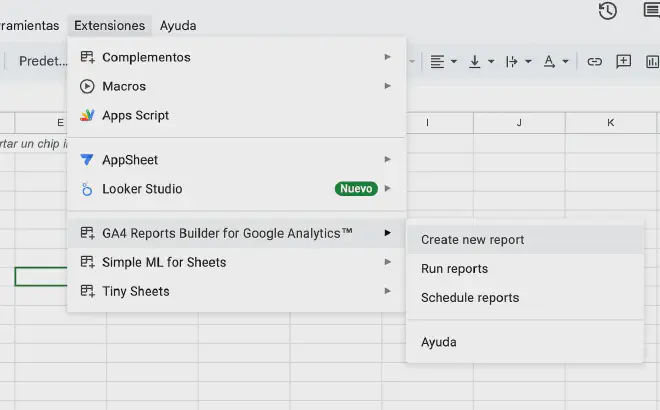
- Access the add-on from Extensions > Google Analytics > Create new report.
- Sign in with your Google account and select the GA4 property you want to use.
-
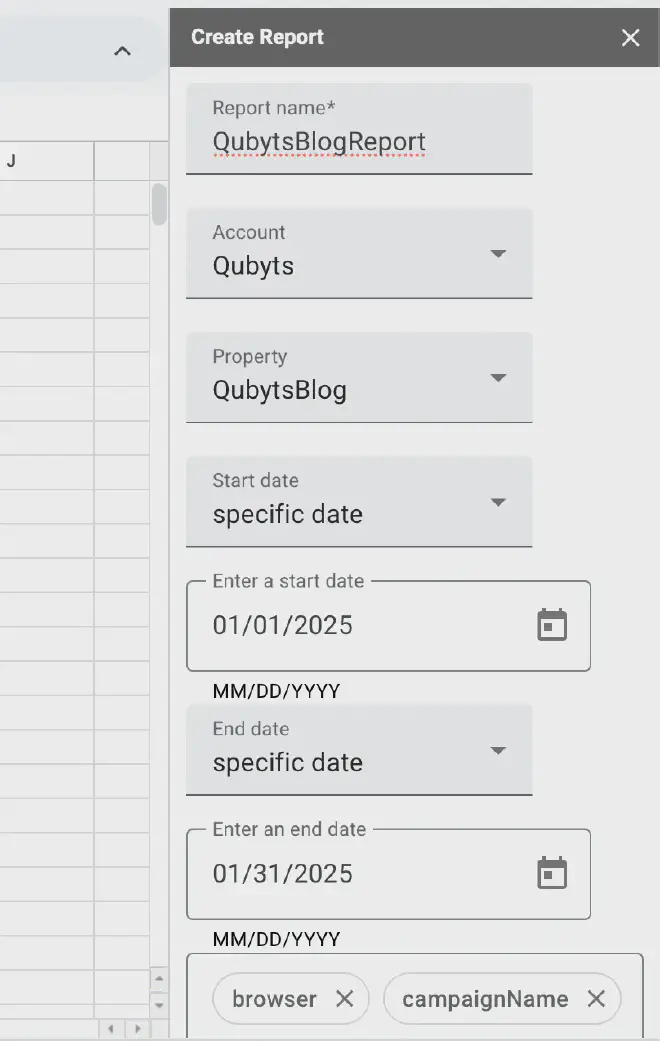
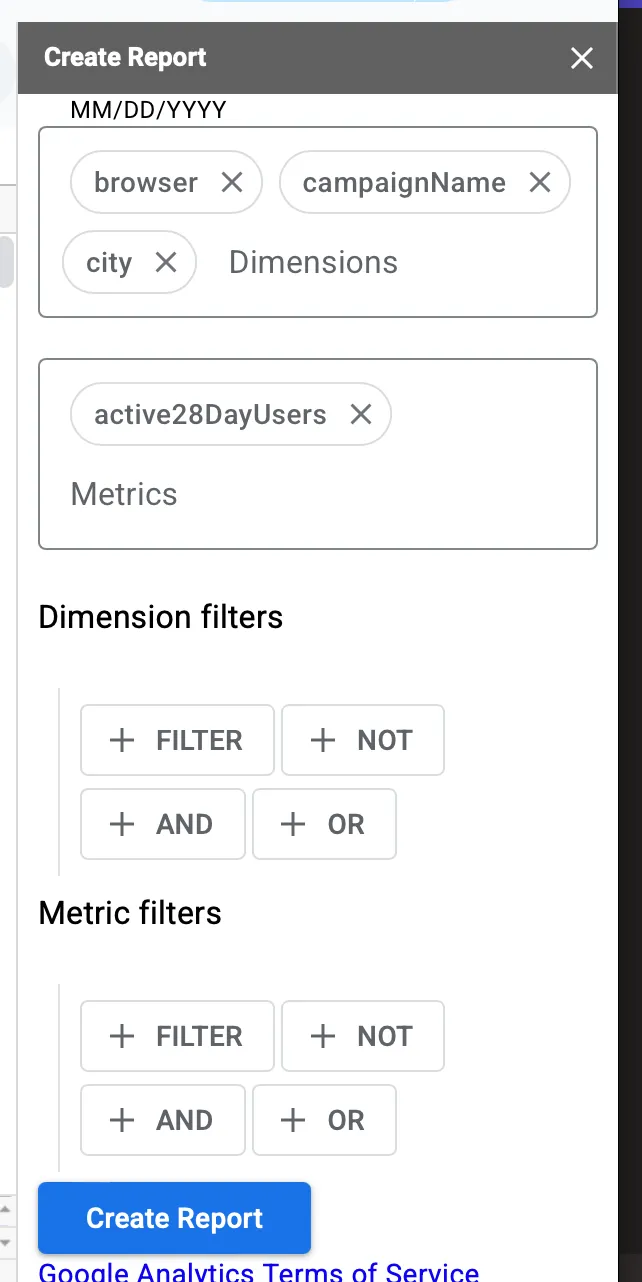
Configure your Report:
- Define the dimensions and metrics you need (e.g., users, sessions, conversions, etc.).
- Set the date range and any necessary filters.
-
Run and Fetch Data:
- Click Create Report. The add-on will generate a new sheet with your configuration.
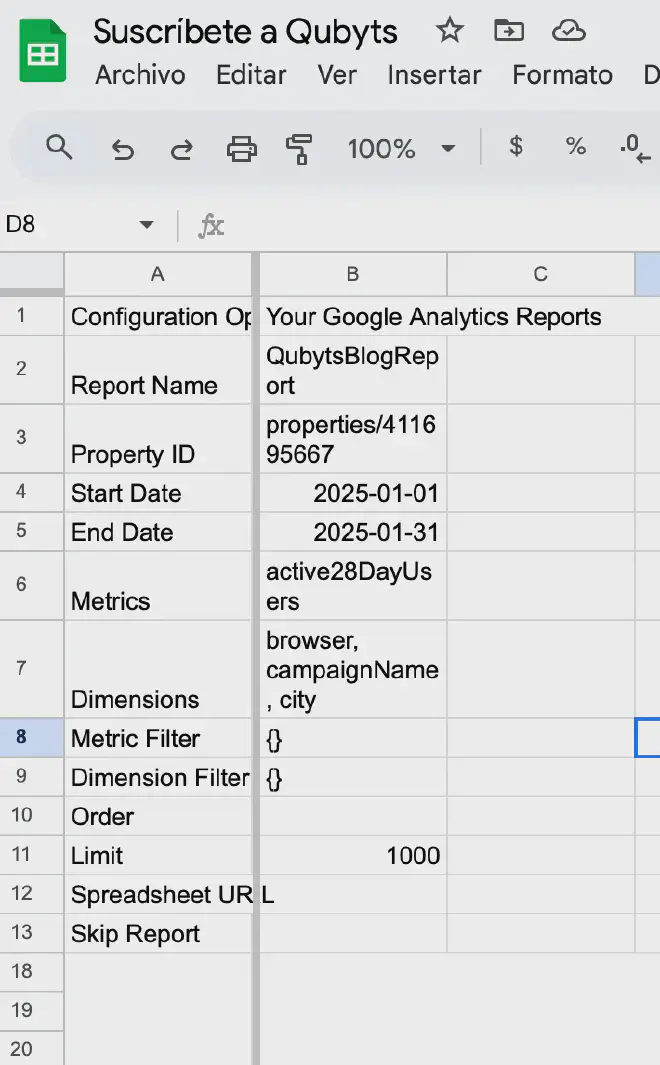
- Go back to the extension menu and click Run Reports.
- Done! Your data is now in Sheets.
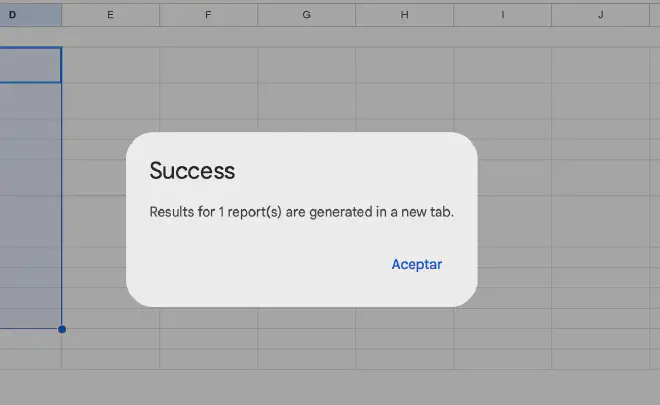


⚠️ The Downside: You have to manually click ‘Run Reports’ every time you want updated data. If you forget, your report stays outdated.
Method 2: Coupler.io (Professional Automation) #
If you are looking for something more robust and flexible, Coupler.io is an excellent alternative.
How it works #
-
Sign up and Connect:
- Register at Coupler.io.
- Create a new Data flow, select Google Analytics 4 as your source.

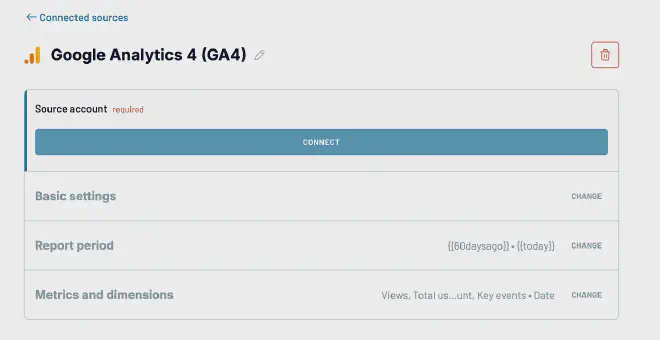
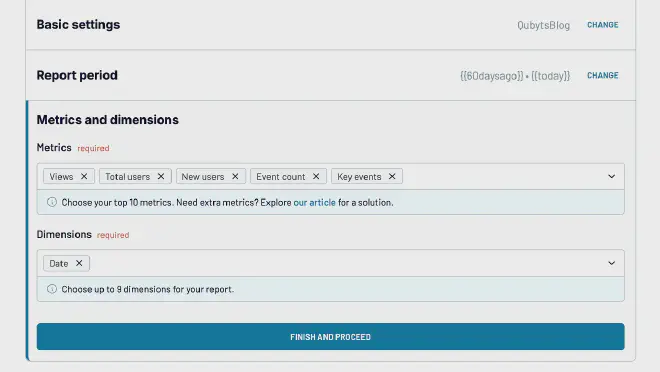
- Select your property (e.g., QubytsBlog), date range, and metrics.
-
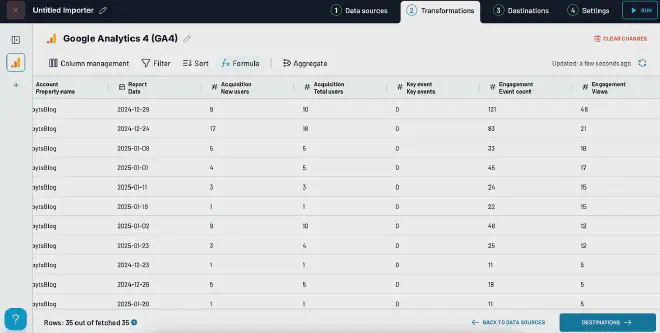
Data Transformations:
- You can apply calculations or transformations to your data before exporting.
-
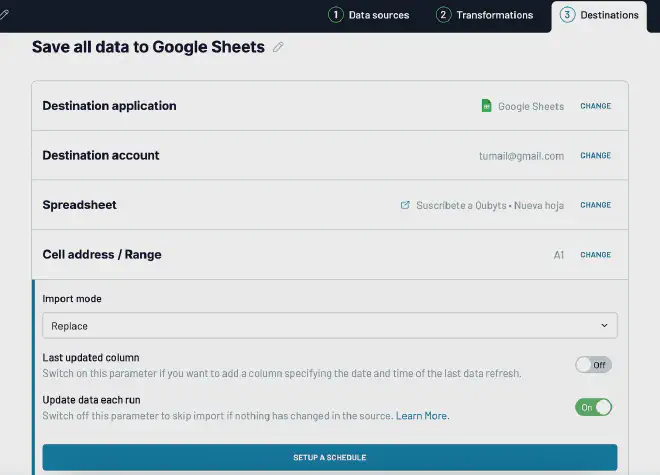
Destination Setup:
- Choose your destination (Google Sheets) and specify the file and tab.
-
Automation:
- Schedule automatic updates to keep your data fresh.
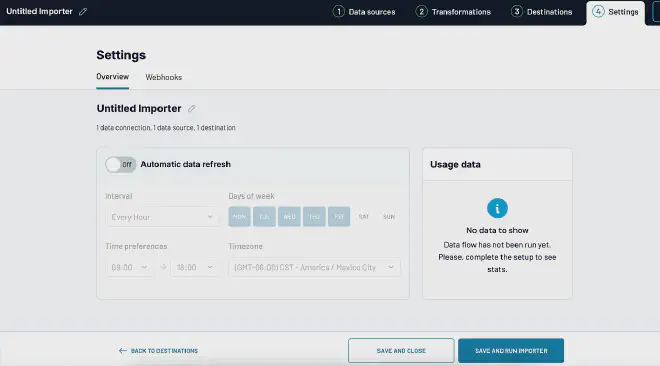
- Click SAVE AND RUN IMPORTER.
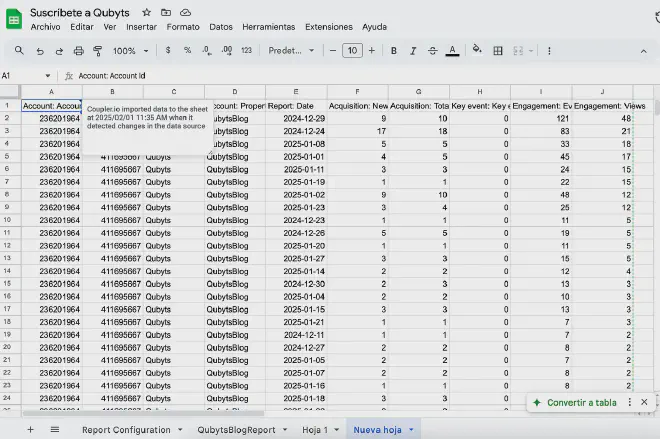


Final Verdict #
- Manual but Free: Use the Official Extension.
- Automated & Professional: Try Coupler.io for free here.
Was this resource helpful?
☕️ Support my workThanks for reading and see you in the next tutorial!