
If you want to get the most out of Google Analytics 4 (GA4), exporting your data to Google Sheets is an excellent way to analyze it and share insights with your team. In this post, I will show you two methods:
- The Free Official Extension: Best for manual exports and simple reports.
- Coupler.io: A robust tool that allows you to export data not only to Sheets but also to destinations like BigQuery, PostgreSQL, or Tableau. Coupler.io offers a free plan and, in its paid versions, the ability to automate extraction and transform data.
Method 1: The Official Free Extension #
Google offers an official add-on (GA4 Reports Builder for Google Analytics) that helps you extract data from GA4 directly into Google Sheets.
Step-by-Step Setup #
-
Install the Add-on:
- Open a new Google Sheets file.
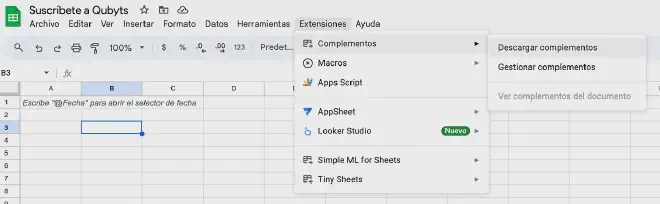
- Go to Extensions > Add-ons > Get add-ons.
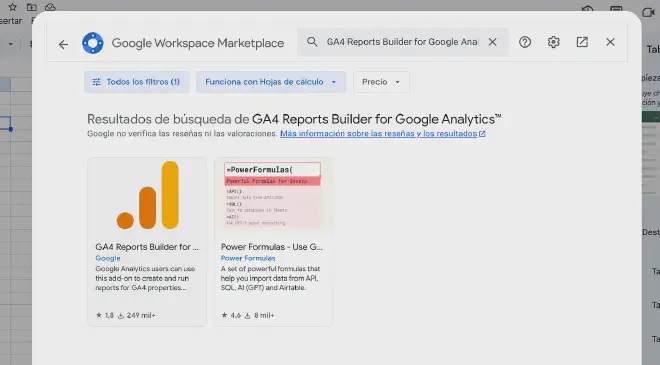
- Search for “Google Analytics” and select the official add-on.
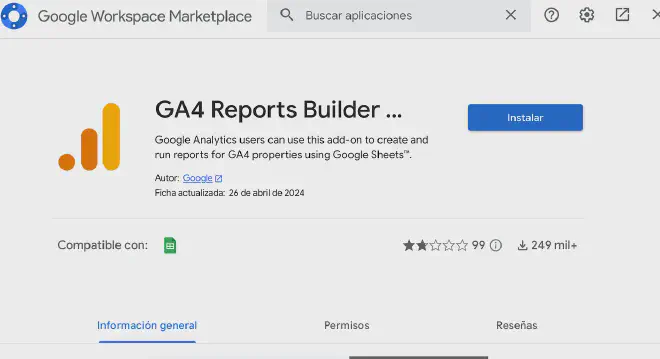
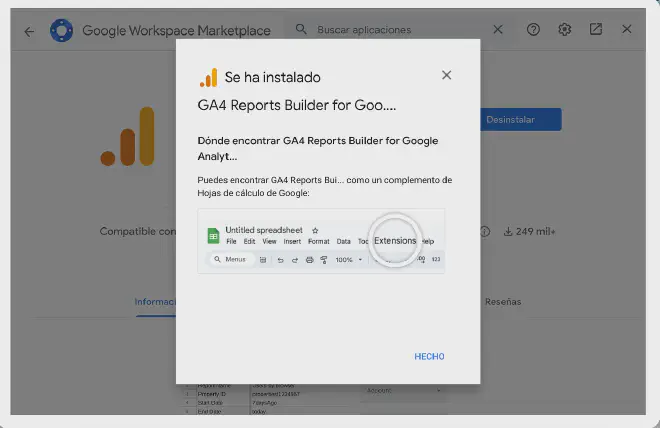
- Click Install and accept the necessary permissions.
-
Connect to GA4:
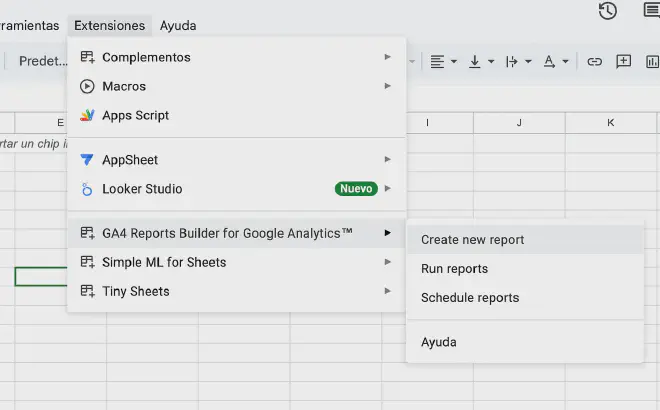
- Access the add-on from Extensions > Google Analytics > Create new report.
- Sign in with your Google account and select the GA4 property you want to use.
-
Configure your Report:
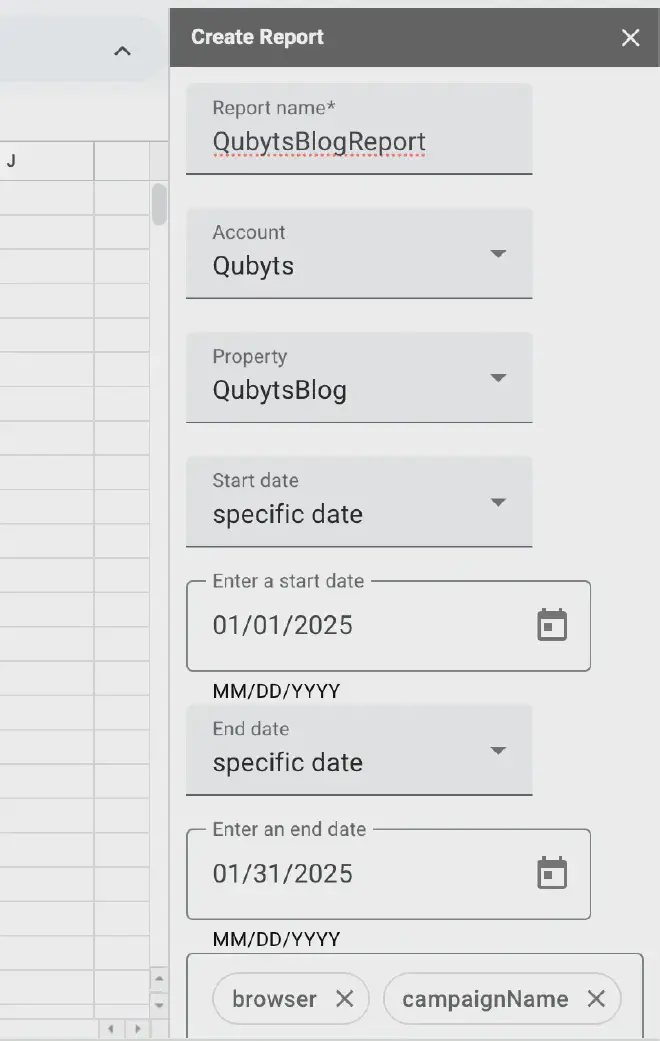
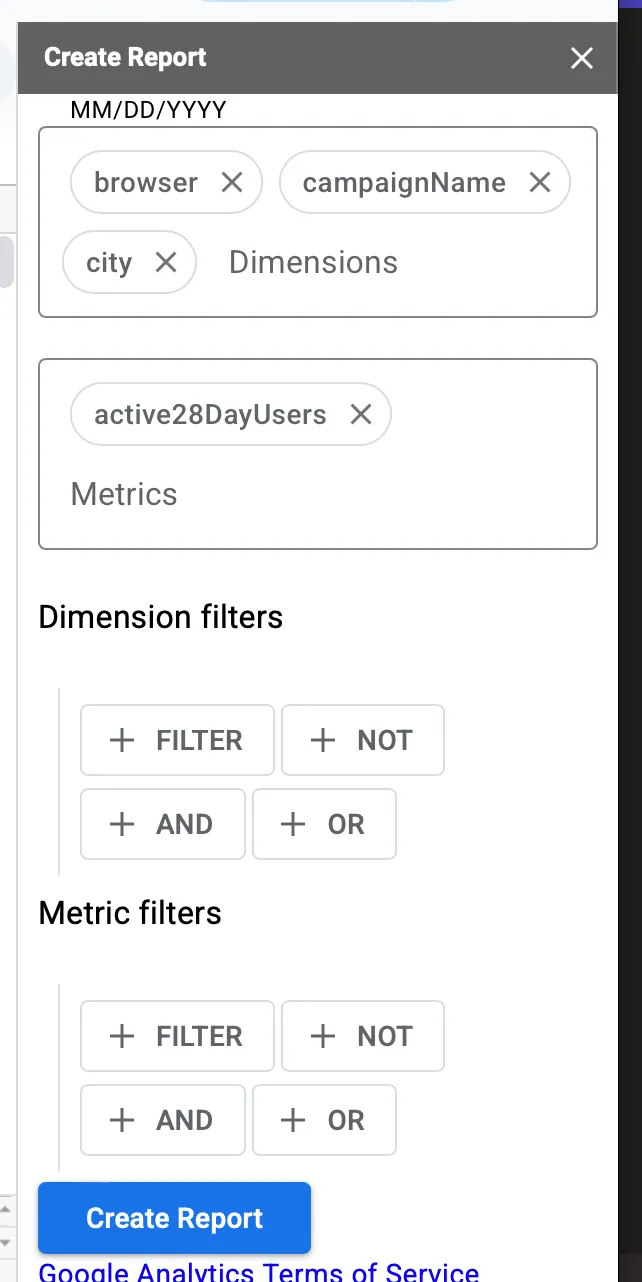
- Define the dimensions and metrics you need (e.g., users, sessions, conversions, etc.).
- Set the date range and any necessary filters.
-
Run and Fetch Data:
- Click Create Report. The add-on will generate a new sheet with your configuration.
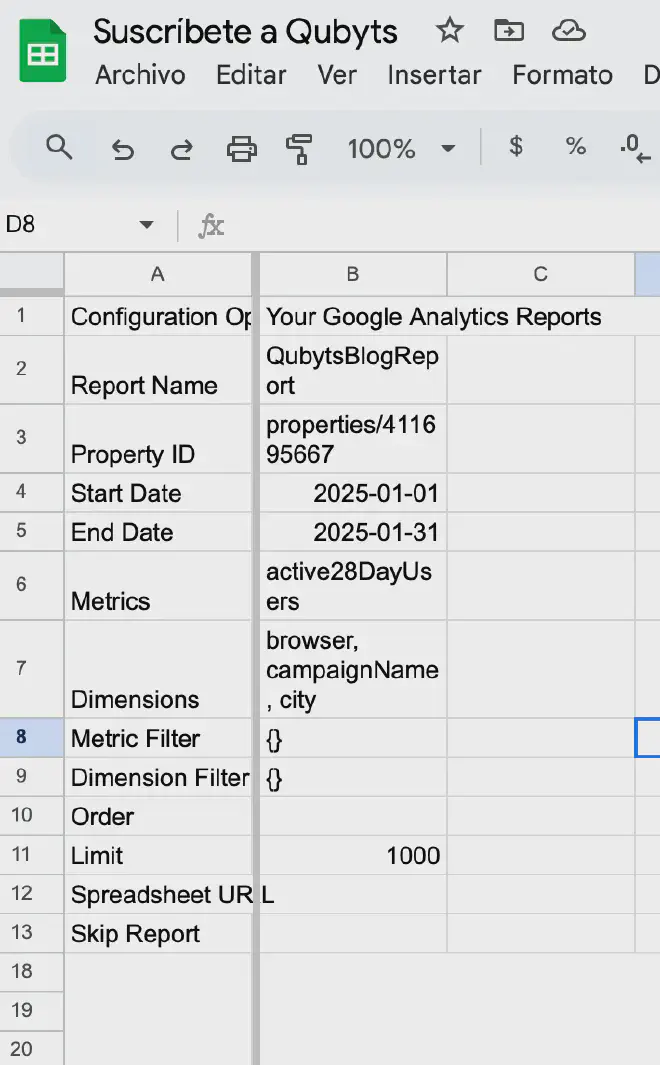
- Go back to the extension menu and click Run Reports.
- Done! Your data is now in Sheets.
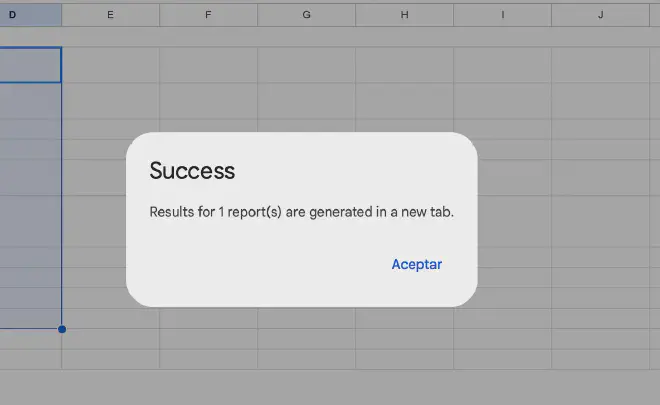


⚠️ The Downside: You have to manually click ‘Run Reports’ every time you want updated data. If you forget, your report stays outdated.
Method 2: Coupler.io (Professional Automation) #
If you are looking for something more robust and flexible, Coupler.io is an excellent alternative.
How it works #
-
Sign up and Connect:
- Register at Coupler.io .
- Create a new Data flow, select Google Analytics 4 as your source.

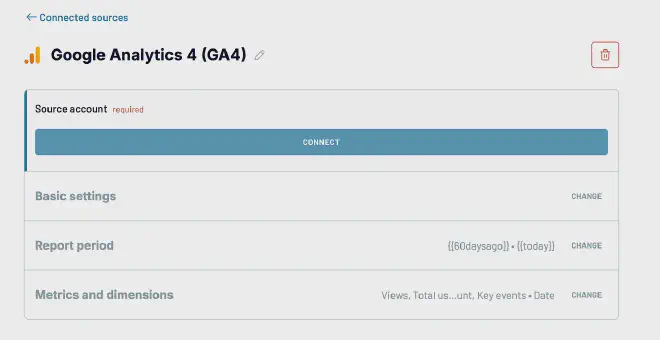
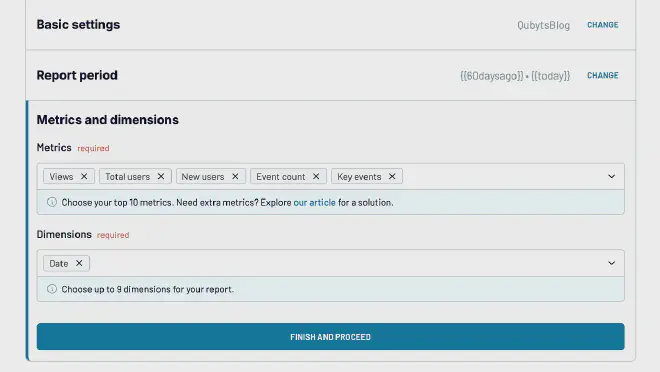
- Select your property (e.g., QubytsBlog), date range, and metrics.
-
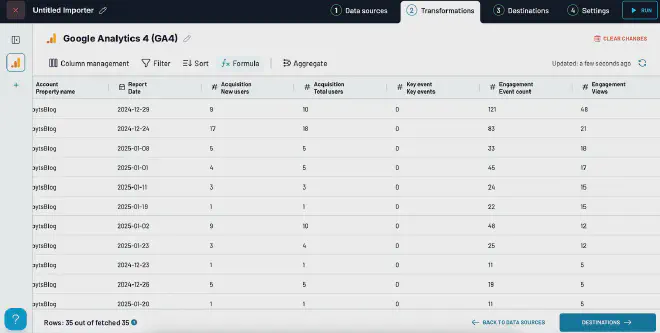
Data Transformations:
- You can apply calculations or transformations to your data before exporting.
-
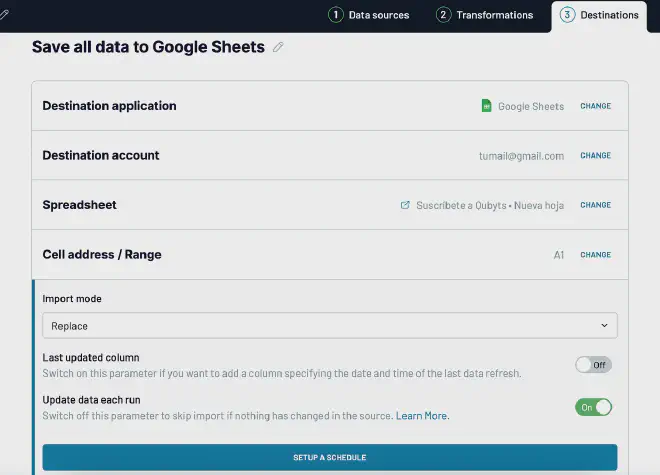
Destination Setup:
- Choose your destination (Google Sheets) and specify the file and tab.
-
Automation:
- Schedule automatic updates to keep your data fresh.
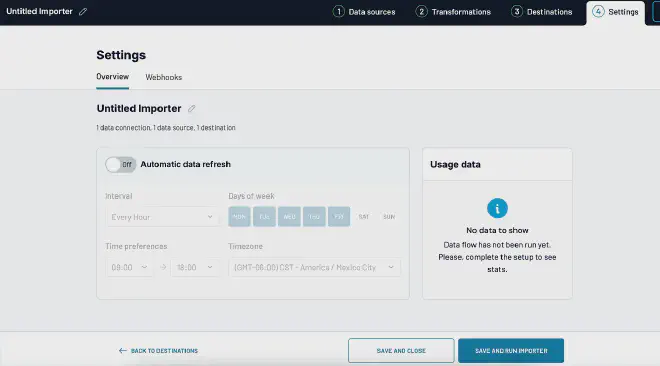
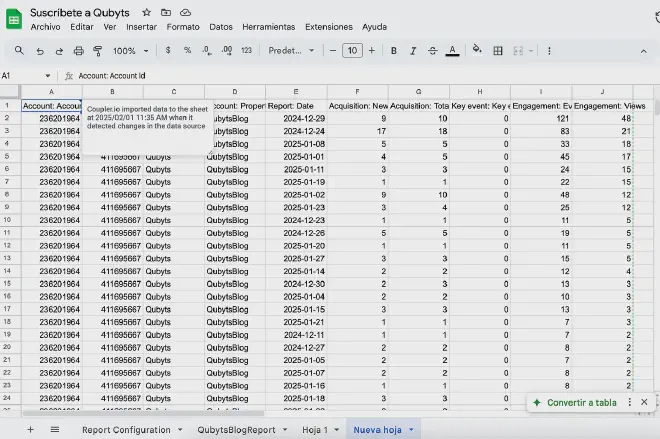
- Click SAVE AND RUN IMPORTER.


Final Verdict #
- Manual but Free: Use the Official Extension.
- Automated & Professional: Try Coupler.io for free here .
Was this resource helpful?
☕️ Support my workThanks for reading and see you in the next tutorial!
Was this useful?
Everything about Google Sheets is also on video, in one playlist (in Spanish).
Watch the Google Sheets playlist →